Why Migration Assistant Kept Saying Not Enough Space on My New Mac mini
My new 512GB Mac mini arrived a couple of days ago. My old Mac is also 512GB, with only about 298GB actually used—so moving everything over should have been effortless. Instead, Migration Assistant immediately threw a "Not enough storage space" error and refused to proceed. At first, I had no idea Migration Assistant had a blind spot and simply assumed my old Mac had too much clutter.
First Pass with Cleeen
I started by freeing up disk space with Cleeen, a Mac utility built by ZaynHao. Its interface and interactions are thoughtfully crafted, and after a quick scan it lays out the largest space hogs clearly. I cleaned up a solid chunk of files from that list, yet Migration Assistant still refused to budge.
Cross-Checking with DeepSeek
Next, I fed the large-file breakdown from Cleeen into DeepSeek and asked it to audit my disk usage and cross-check what else could be hiding. My prompt looked roughly like this:
1. Analyze disk usage distribution and find which large files/folders are taking up space
2. Separate "safe to delete" from "do not touch"
3. Propose a cleanup plan showing how much space each item frees
4. Wait for my confirmation before deleting anything
Important: Never touch system files or my work documents—ask first if unsure
Looking back, adding one extra line would have saved even more time: "Also check for sparse files—where the declared logical size is much larger than actual disk usage." You don't need to memorize terminal flags yourself; just let AI run the check.
DeepSeek uncovered a pile of stale leftovers—including dead data left behind by openclaw. Once those were cleared, the real culprit finally surfaced:
Docker.raw — 460GB logical size, but only 13.9GB actually used on disk.
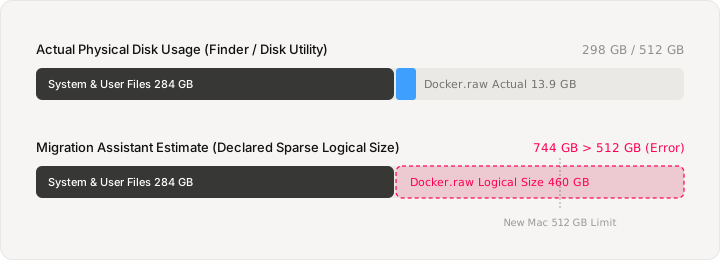
That's a sparse file. It pre-declares a massive virtual ceiling while only writing a fraction of actual bytes to disk. Migration Assistant calculates required space using the declared logical size rather than physical disk blocks. From its perspective, my 512GB Mac was trying to transfer well over 700GB of data. Deleting photos or browser caches would never have fixed it, because Migration Assistant wasn't counting what Finder shows.
It turns out this trips up plenty of people. One OrbStack user saw data.img report a logical size of 8.8TB; deleting it immediately fixed migration. Another Reddit thread described migrating between two 512GB Macs with over 200GB free, yet Migration Assistant still claimed the transfer exceeded 512GB.
Also worth noting: direct Mac-to-Mac migration errors out immediately when the estimate overflows, without letting you deselect heavy folders first. Restoring from a Time Machine backup lets you uncheck large directories after the size scan, which is far more flexible.
Once I removed Docker.raw and similar inflated sparse files, Migration Assistant sailed right through.
Don't Wipe the Old Mac Right Away
Running out of space at least gives you an explicit error. A worse failure mode is when Migration Assistant says "Migration Complete," only for you to log in to an empty account. Around the macOS Tahoe release, several users reported entire Music, Movies, and Pictures folders vanishing, or a new SSD sitting at 13GB used after completion. Others saw duplicate login accounts with zero files inside (Apple SE).
Always verify before wiping the old machine: compare total used disk space on both Macs, spot-check Documents, Desktop, and Pictures, or ask AI to diff directory sizes across both machines. Keep the old Mac intact until the numbers match.